Quick Look: [Your Organisation's Name] > File Manager
Follow this guide to find out how you can see, download and update the files that are used on your tablet e.g. Health and Safety policy.
Required: Role = Client Admin / Site Limits = Off
More information here Check My Role and Site Limits
The File Manager allows you to update and change certain files on your tablet without having to contact us first.
Note: This is currently limited to Health & Safety documents and any specific documents that have been pre-determined during the initial setup to be able to be updated by you.
Please get in touch if you are a Client Admin and don't have access to any documents in the File Manager and your user fits the requirements above.
Access the File Manager
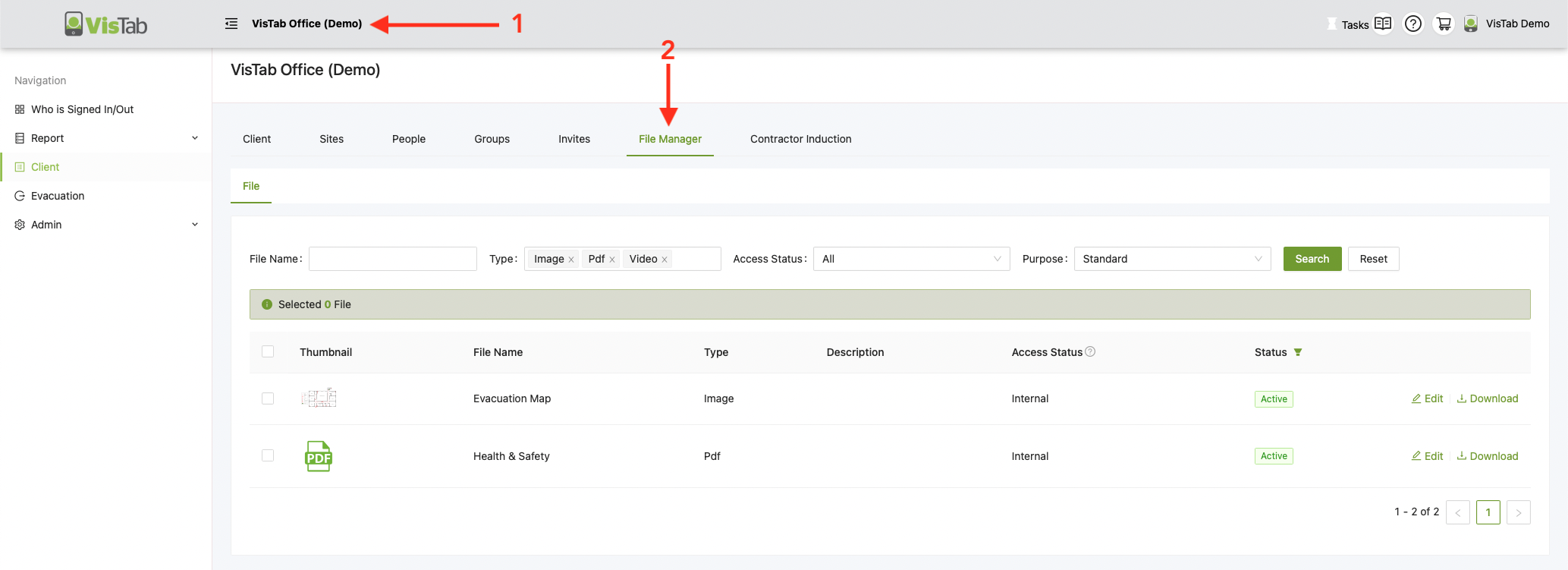
- Select your Organisation's name at the top
- Select the File Manager tab
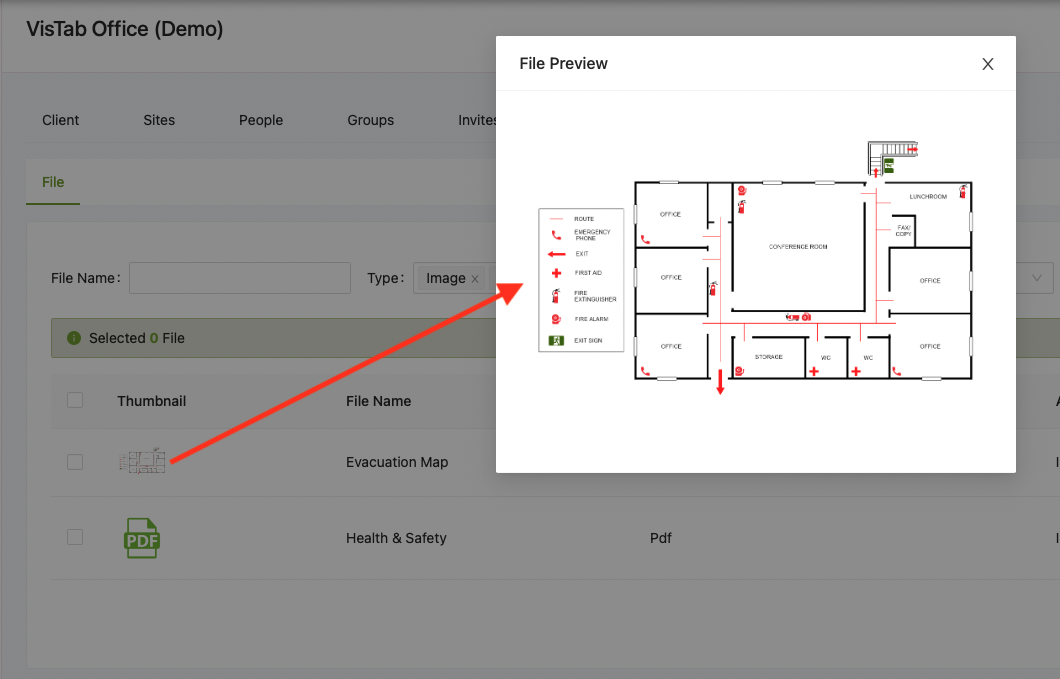
Preview File
Select the Thumbnail on the left hand side to get a preview of the file.
Download File
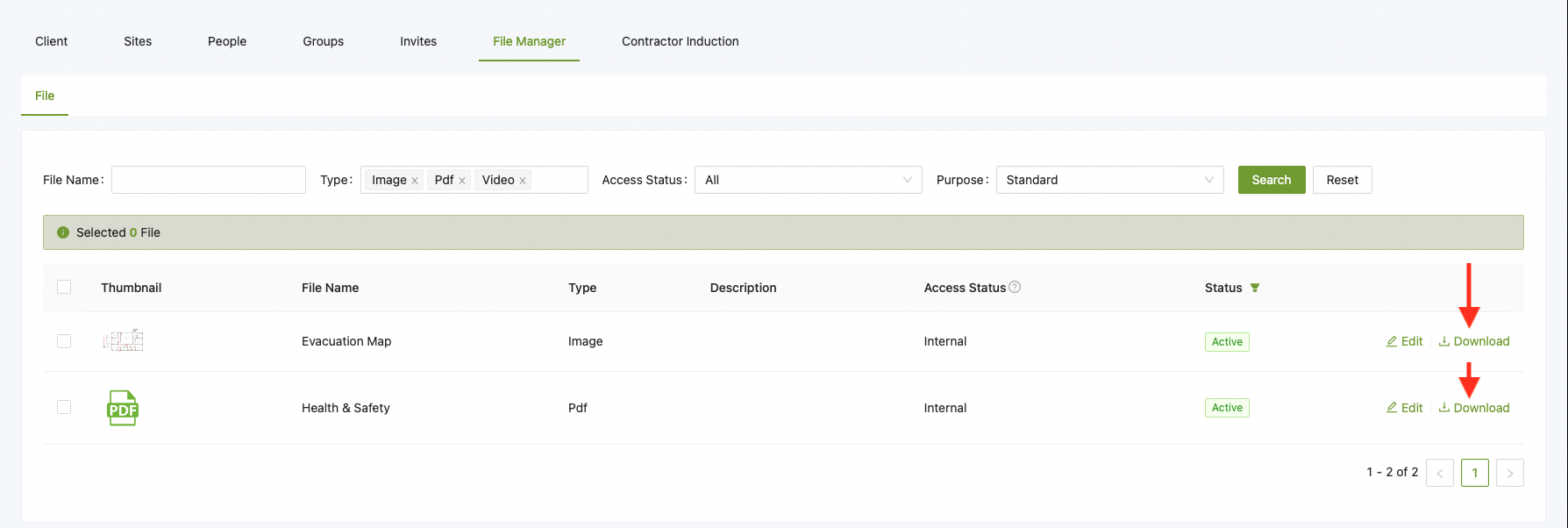
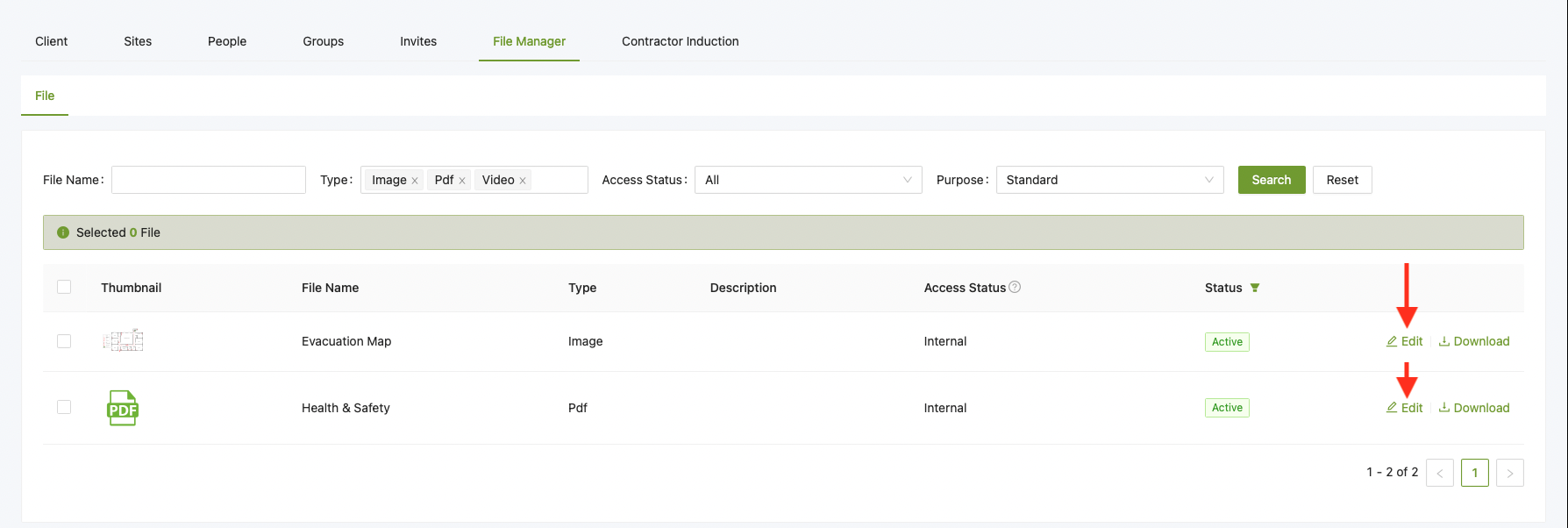
You can download files by selecting Download on the far right side.
Images can also be downloaded via Right Click on the thumbnail.
Depending on your browser, you may be able to download PDF Documents also via the File Preview.
Upload File
Note: Please make sure your file matches the File Extension e.g. PNG, PDF etc.
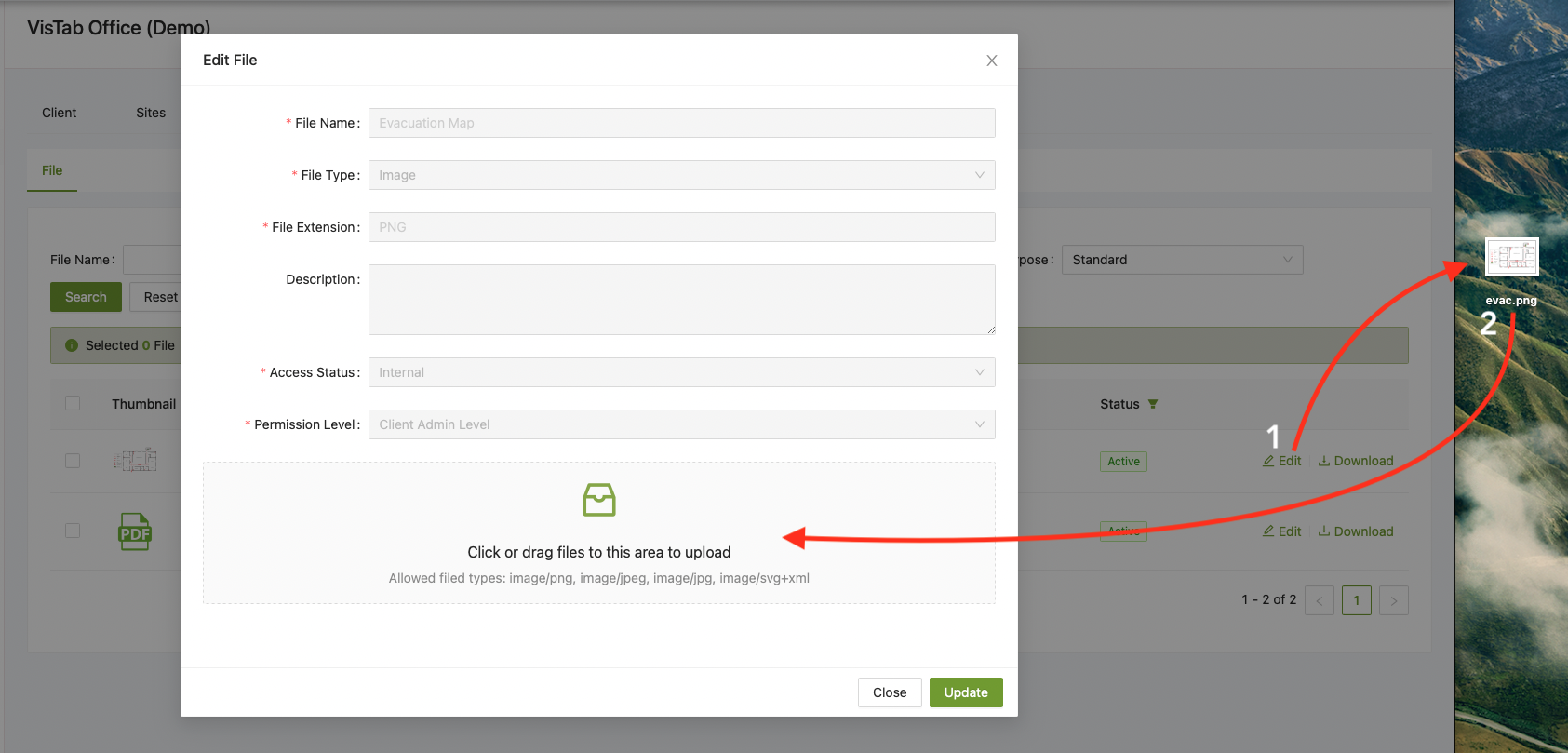
- Select Edit on the right side
- Drag and Drop your File to the highlighted area or click anywhere on the highlighted area to open your file browser and select the file.
- Select Update
Publish All Layouts
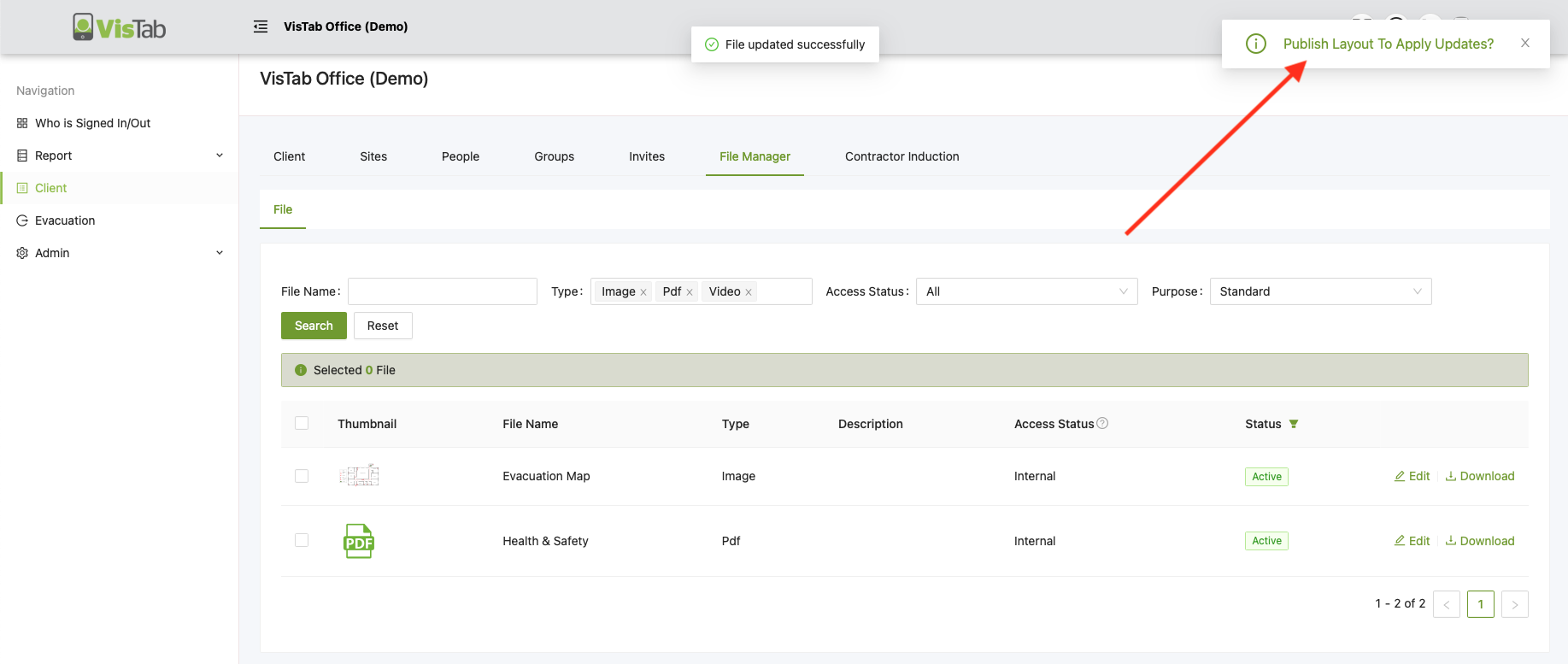
4. Click on the notification in the top right corner, this will take you to the Client overview
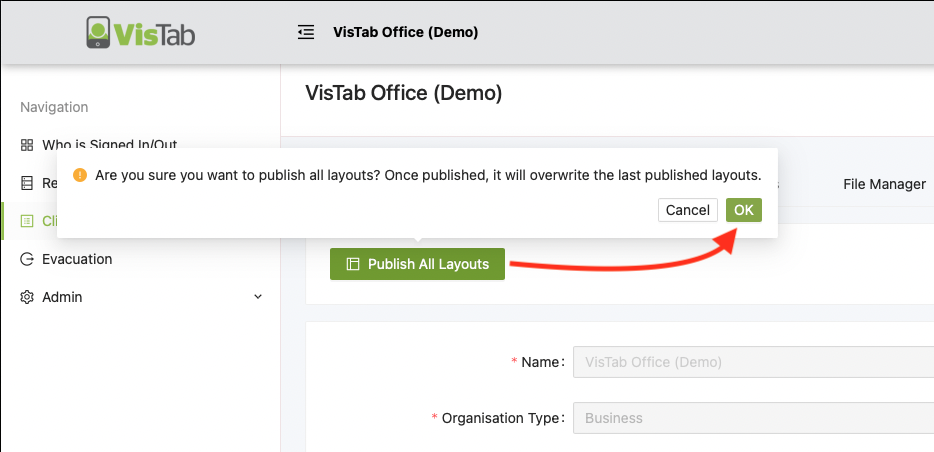
5. Select Publish All Layouts and confirm your choice by selecting OK
Note: The changes will immediately be pushed to all of your tablets that use the updated files
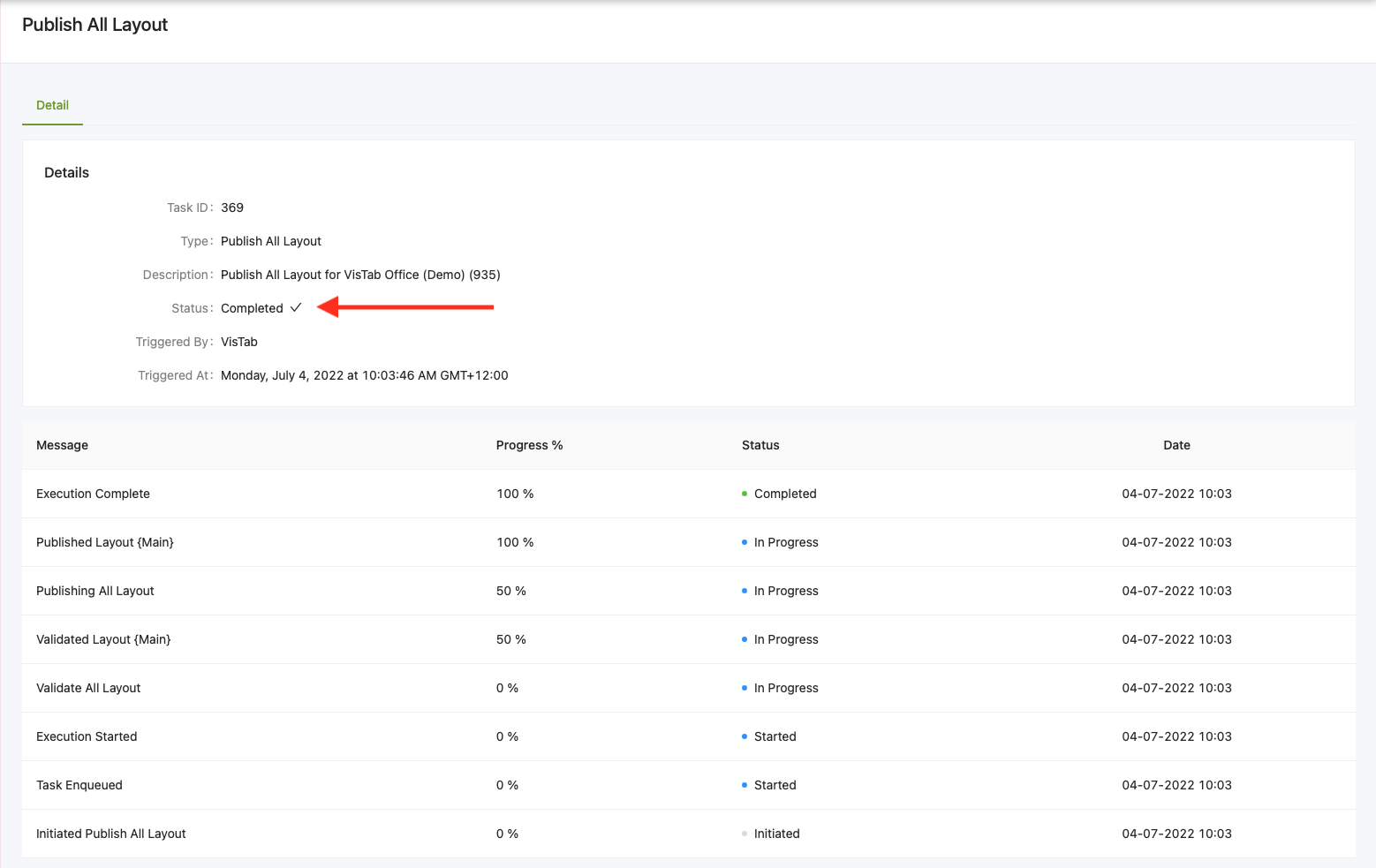
6. You will now see the screen below, wait until the task has been completed. Done.